Overheating will slowly kill your laptop. Here’s how to cool down your laptop and prevent it from getting too hot!

Your laptop packs impressive processing power and storage in vanishingly little space. This progress in efficiency comes at a cost: excess heat. The greatest threat to your laptop, except for your coffee, is overheating. It can cause hardware failure and permanent damage.
Let’s take a look at how to prevent or fix an overheating laptop to improve its performance and extend its lifespan.
The Basics of Overheating Computers
Just because your laptop seems hot doesn’t mean it’s overheating.
How Do You Know Your Laptop Is Overheating?
A sure sign that your computer is overheating is when you can hear your fan running at maximum speed all the time. You may also experience reduced performance because modern CPUs can cut back on clock speed to reduce heat stress. Moreover, the fail-safe software may trigger a sudden shut down to prevent hardware damage.

If you want to measure the actual heat values inside your laptop, you can use a tool like HWMonitor (shown above).
This might also reveal which part of your laptop is getting too hot. Typically, you’ll find that the central processing unit (CPU) or the graphics processing unit (GPU) are overheating the most. Laptops with onboard graphics may not display separate GPU temperatures.
How to Stop Your Laptop From Overheating
Several simple hardware fixes can cure overheating.
1. Fix Internal Cooling
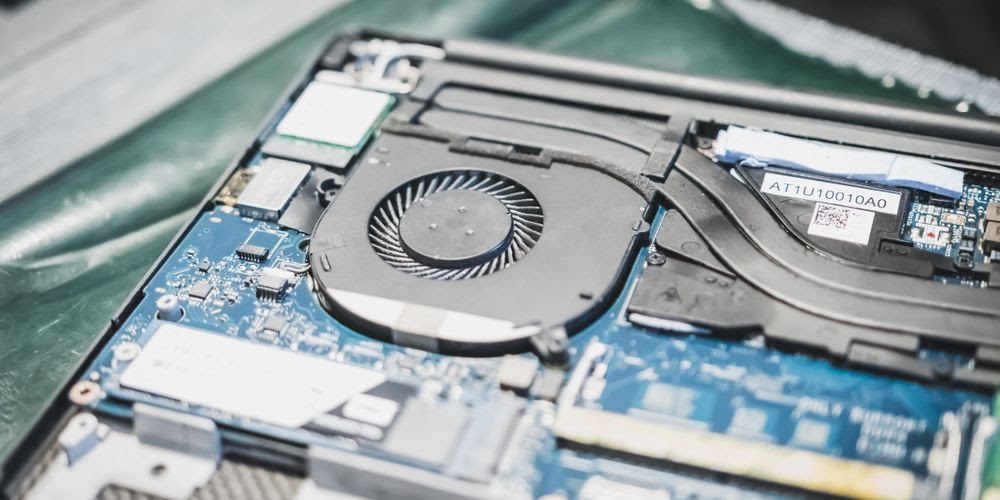
The first and most important thing you need to do when your laptop is overheating is to clean the fan(s) that provide(s) cooling to the CPU and graphics card. Over time, they build up layers of dust and dirt that slow them down and block airflow. Consult your laptop’s manual or the manufacturer to find out how you can open the laptop to access and clean these parts.
Before you attempt to do any cleaning, however, follow these steps:
- Shut down the computer
- Unplug all cables
- Remove the battery (if possible)
- Ground itself
When you’re ready, have a close look at your laptop, outside and inside, and clean the following parts:
- If you can open up your laptop, carefully clean the fan(s) with a cotton swab dipped in a drop of isopropyl alcohol. Make sure the alcohol has completely evaporated before you reconnect the laptop to the power.
- You can also use a vacuum cleaner to remove dust and dirt that clocks up the fan(s). To prevent damage to a fan, do not let it revolve in the wrong direction. If you want to use canned air to clean a fan, stop it from spinning by holding it down.
- Next, you can clean the exhaust port with a vacuum cleaner. It usually sits on the side of the laptop, but you can also find it on the back. Unlike intake grills, exhaust ports release warm or hot air, making them easy to find.
- External intake grills cover fans that suck cooler air into the laptop. They can sit on the sides or at the bottom of your notebook. To clear the intake grills, spray them with canned air.
- Finally, you can apply fresh thermal grease to the interface between the CPU and GPU and its heat sink. Again, please consult the laptop’s manual or manufacturer to obtain instructions on disassembling these components
See our guide on cleaning out dust from your MacBook or iMac if that’s the hardware you use. Furthermore, Inside My Laptop has some great tutorials on fixing your laptop, including how to apply thermal grease to your laptop’s processor.
2. Keep the Laptop on a Hard and Flat Surface
If your laptop’s intake grills are at the bottom, then uneven surfaces, like a blanket, pillow, or your lap, will obstruct its airflow. Subsequently, cooling is impaired, heat builds up, your laptop surfaces get hot, the internal temperature increases, and eventually, the laptop will overheat.
You can easily avoid this scenario by keeping the laptop on a hard and flat surface. You can use something as simple as a tray or get a special laptop holder or lap stand.
 TechWith_Gautam